Purchase Order from Canvass Summary
Video Tutorial
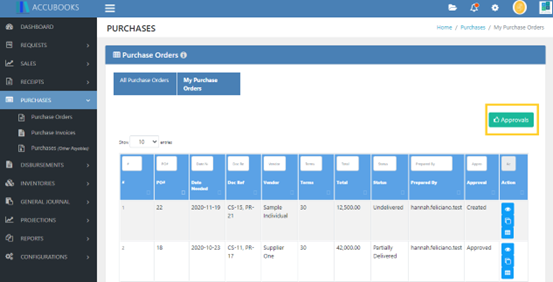
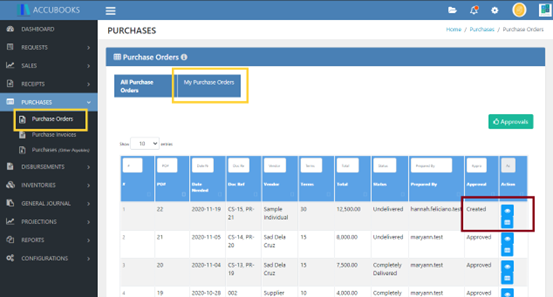
The transaction that was created automatically from Canvass Summary can be found on Purchases Module under the Purchases Module look for Purchase Orders using the drop down list beside Purchases and click My Purchase Orders.
View Transaction
Click the “Eye Button” to view the transaction that was created automatically in Purchase Order from the Canvass Summary.
After you click the eye button to view the transaction, this is the page that will be displayed (refer to the image shown above). The information indicated in the purchase order is based on the details encoded in Canvass Summary and Purchase Requisition.
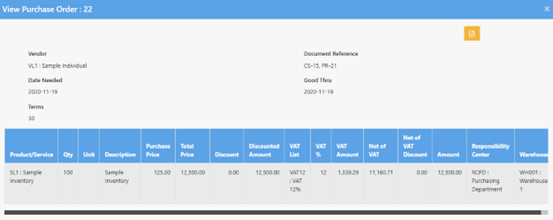
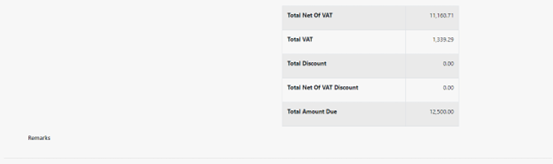
Check the amounts indicated in the table.
Save
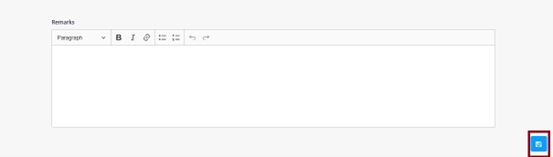
Click the save button located in lower right side to save the transaction created.
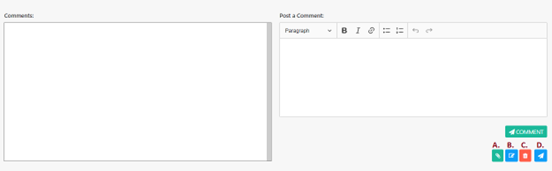
- This button represents file attachment - you can attach file or document that supports your need for creating a record in purchase requisition. Note: PDF file or image file are the only file attachment that is accepted, excel files are not allowed as this can be changed or altered.
- This button is for editing purposes.
- This button is for removal of record that have been created in purchase requisition. Once you click this button, the record that you have been created will be deleted.
- Click this button to submit the record that you have created. The status of the record that you have created will not changed to “checked status” if you will not click this button and the assigned checker will not be able to check this record.
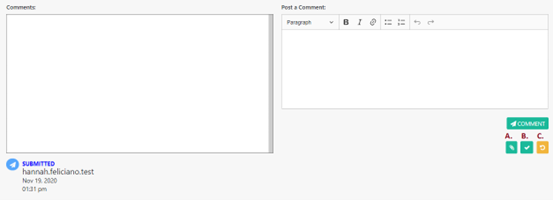
- This button represents file attachment - you can attach file or document that supports your need for creating a record in purchase requisition. Note: PDF file or image file are the only file attachment that is accepted, excel files are not allowed as this can be changed or altered.
- This button is for checking of the transaction that has been created.
- This button is used to return the record that have been created if the assigned checker saw a mistake or wrong information in the records that have been created
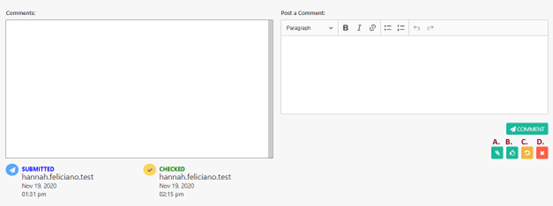
In the image above, in the lower left side, Submitted and Checked Status were indicated as well as the person who submitted and checked the transaction created. The date and time when the transaction is submitted and checked were also indicated.
- This button represents file attachment - you can attach file or document that supports your need for creating a record in purchase requisition. Note: PDF file or image file are the only file attachment that is accepted, excel files are not allowed as this can be changed or altered.
- This button is used to approve the transaction.
- This button is used to return the transaction that have been created if the assigned checker saw a mistake or wrong information in the record that has been created.
- This button is used to cancel the transaction.
Special Note: Click the “Approvals Button” to be able to approve many transactions. The button can be found in the upper right side.