Purchases – Other Payables
Video Tutorial
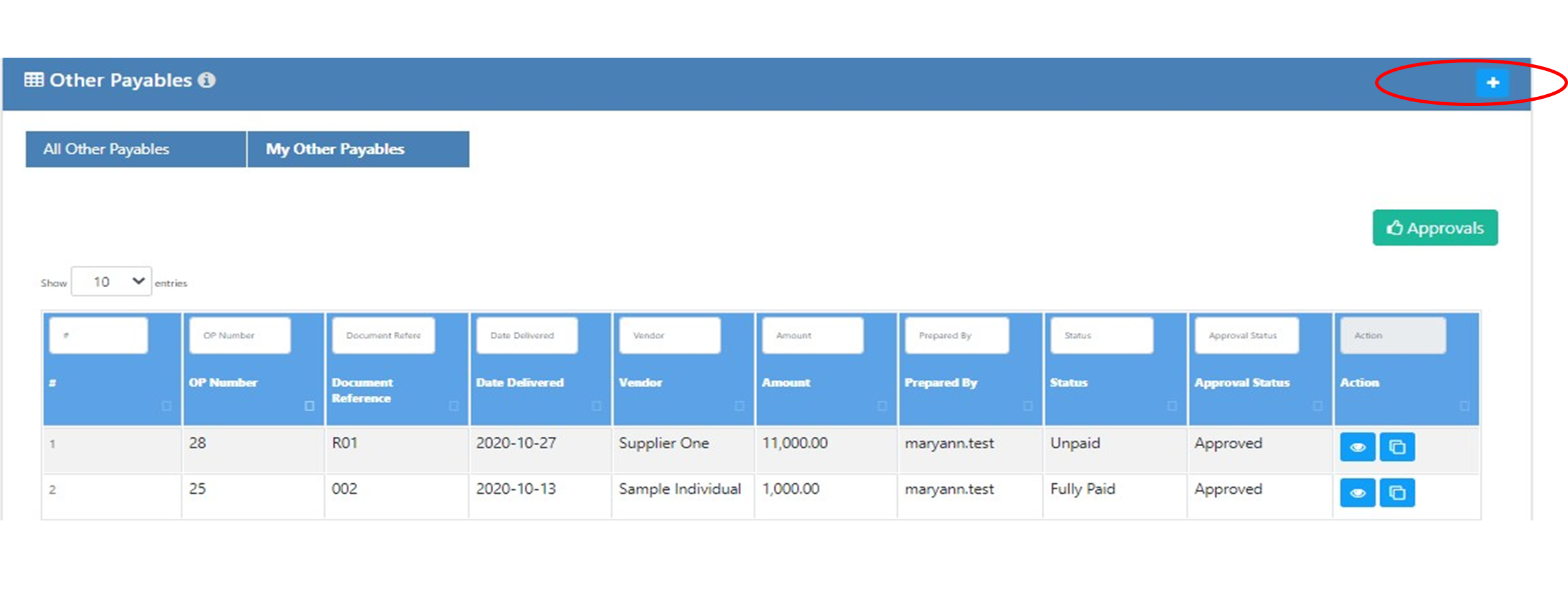
Add
To add Other Payable transaction. Click the ADD Button at the upper rightmost portion.
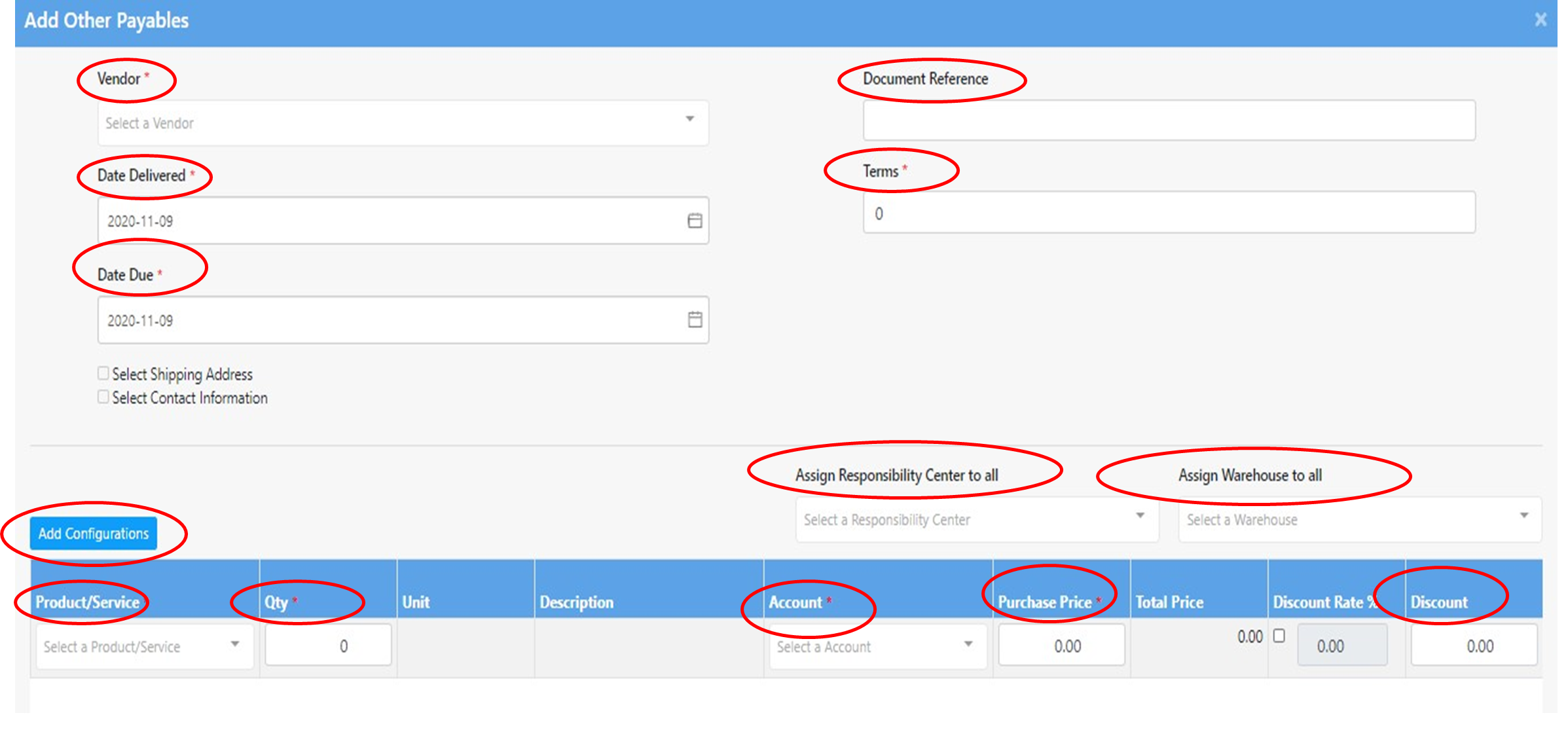
Fill up the required fields.
- Vendor - dropdown list of vendors. To add new vendors, please go to CONFIGURATIONS>VENDORS>LIST
- Document Reference - reference number of supporting documents
- Date Delivered - Delivery Date
- Terms - default terms upon Vendor Configuration
- Date Due - Date Delivered plus Terms
- Add Configurations- to add configurations click the add configuration button.
- Item - dropdown list of inventory/service
- Quantity
- Account - Related Purchases/Expense Account
- Description - Detailed information about the transaction
- Unit Price - Unit Price upon Inventory/Service Configuration
- Discount Rate or
- Discount Actual Amount
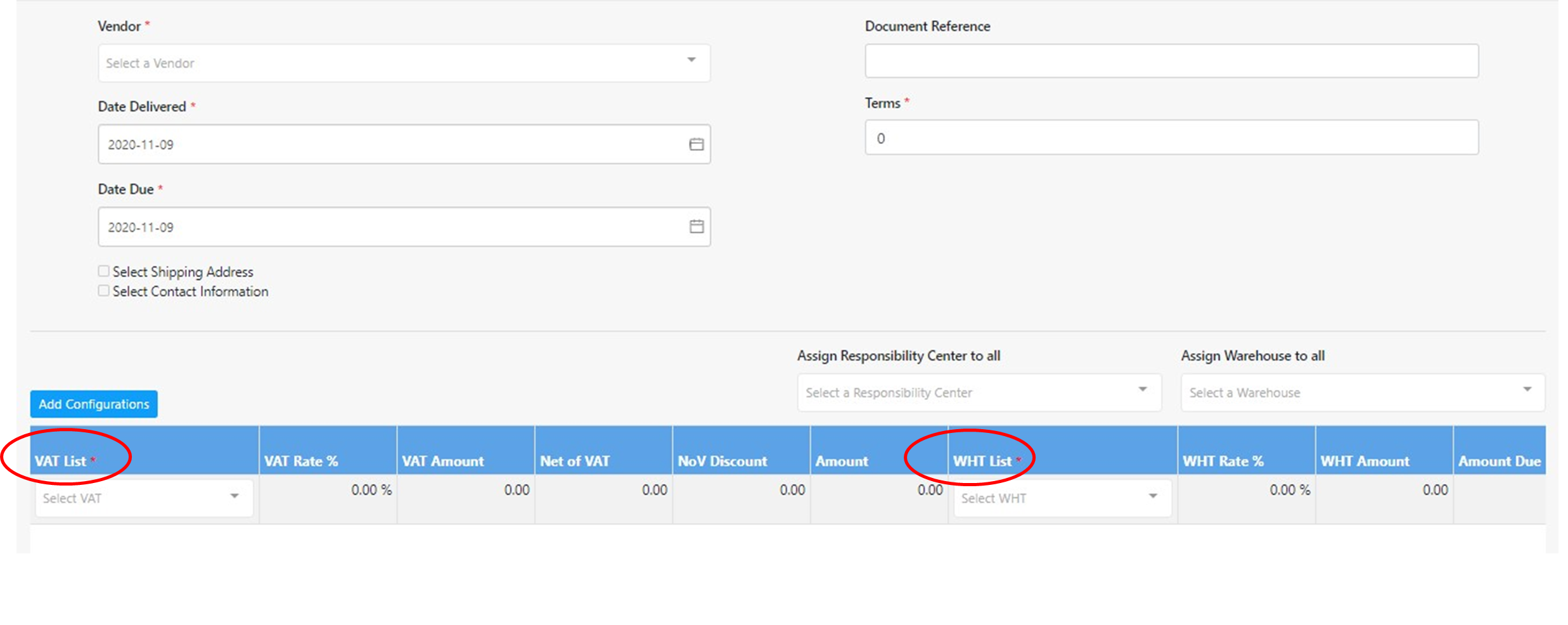
- VAT % - Dropdown list of all Value - Added Taxes
- WHT % - Dropdown list of all Withholding Taxes
- Cost Center - Dropdown list of all Cost Centers
- Warehouse - Dropdown list of all Warehouses
- Expiry - Expiry Date of Inventory/Service

Add Item
To add an item within the Other Payables Module, just click the +Add Item below the first line item.

Delete Item
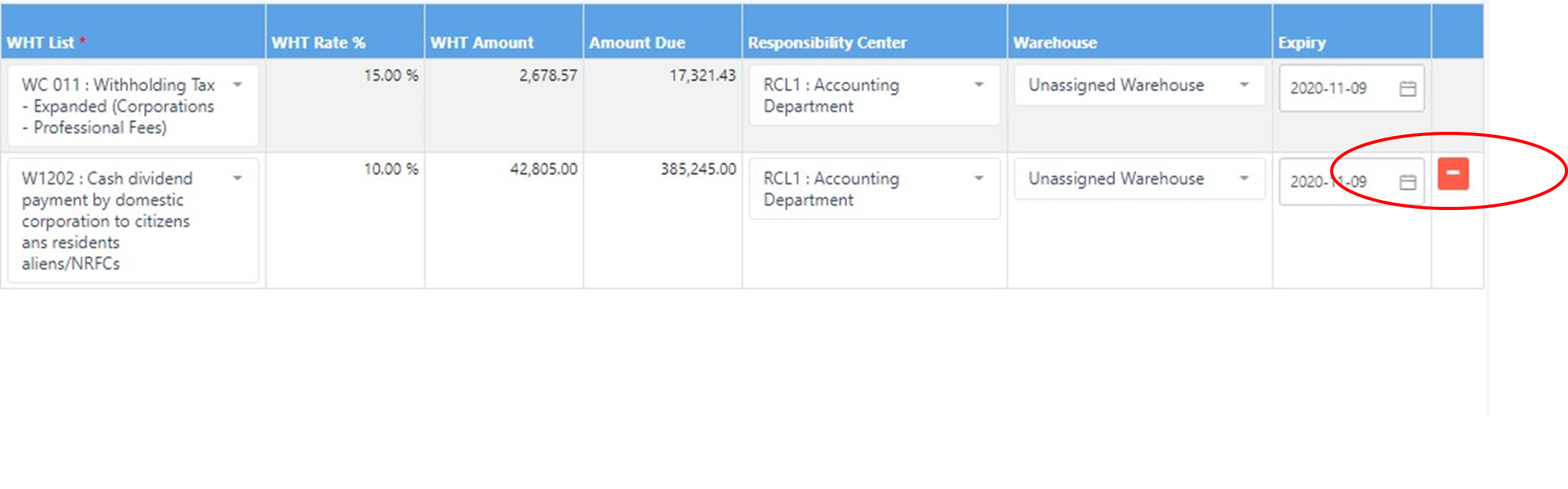
To delete a line item within the Other Payables Module, just click the Delete Icon at the leftmost part of the line.
Totals
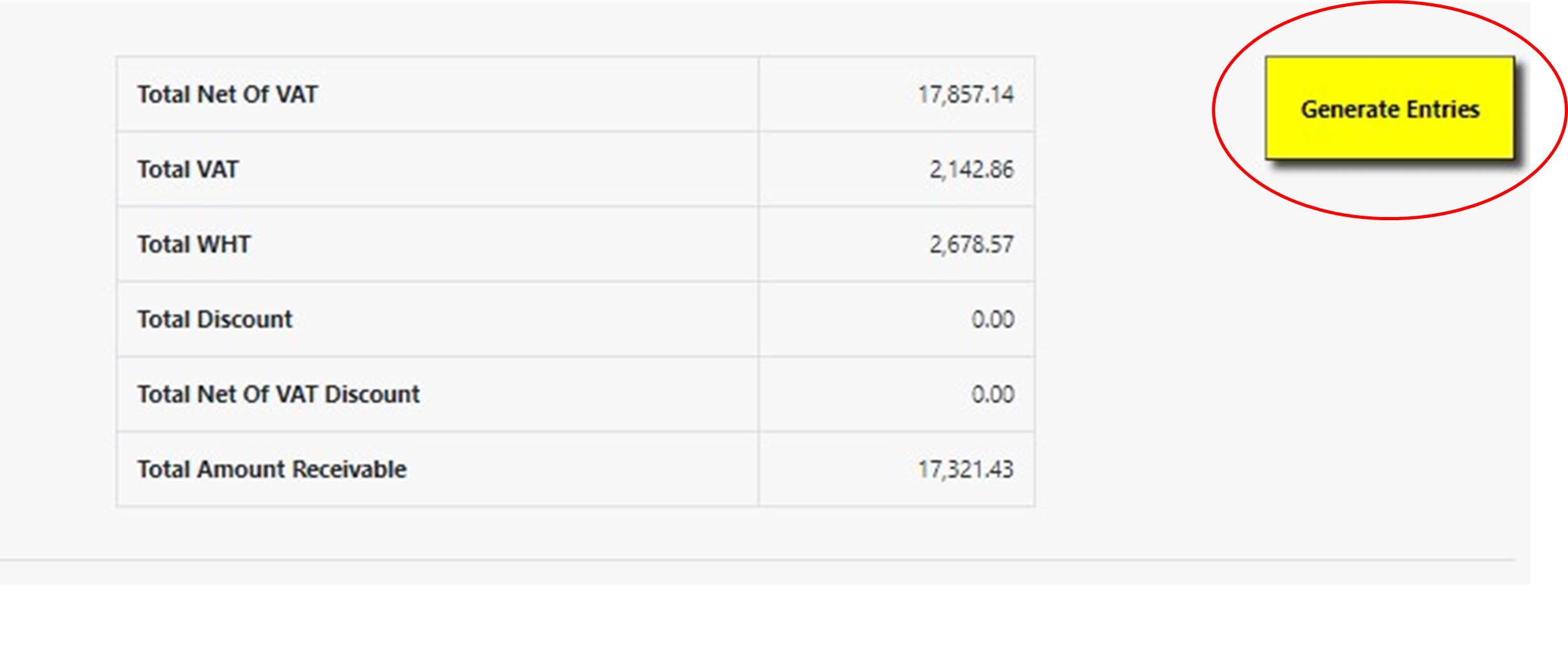
This portion of Other Payables summarizes all the significant totals.
Proforma Entries
The Accounting System automatically generates the proforma journal entries in the Other Payables Module based on the Chart of Accounts Configuration. For the appropriate payable account, the user can choose from the dropdown list of Chart of Accounts.

Fill Up Remarks
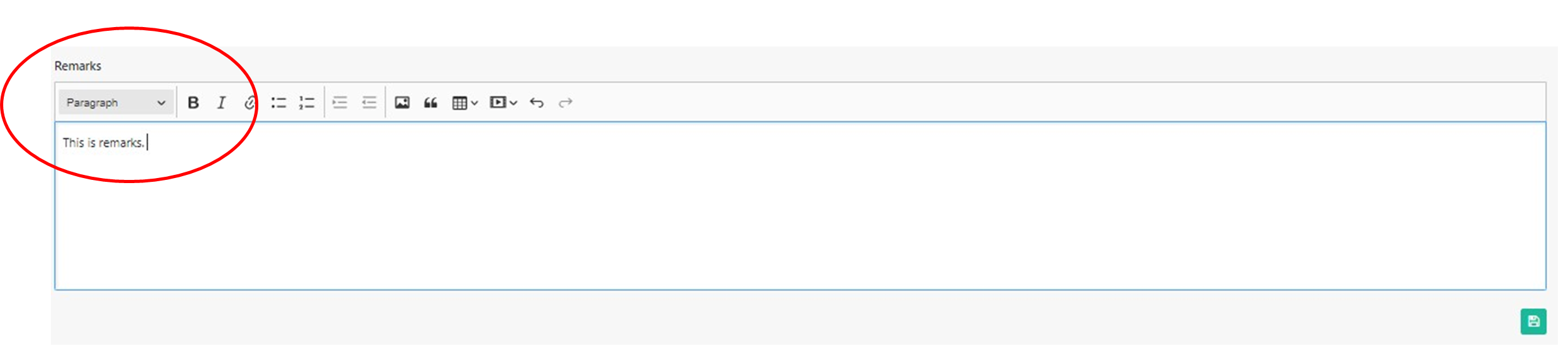
You can fill-up necessary information about the Other Payables in the Remarks Box.
Save
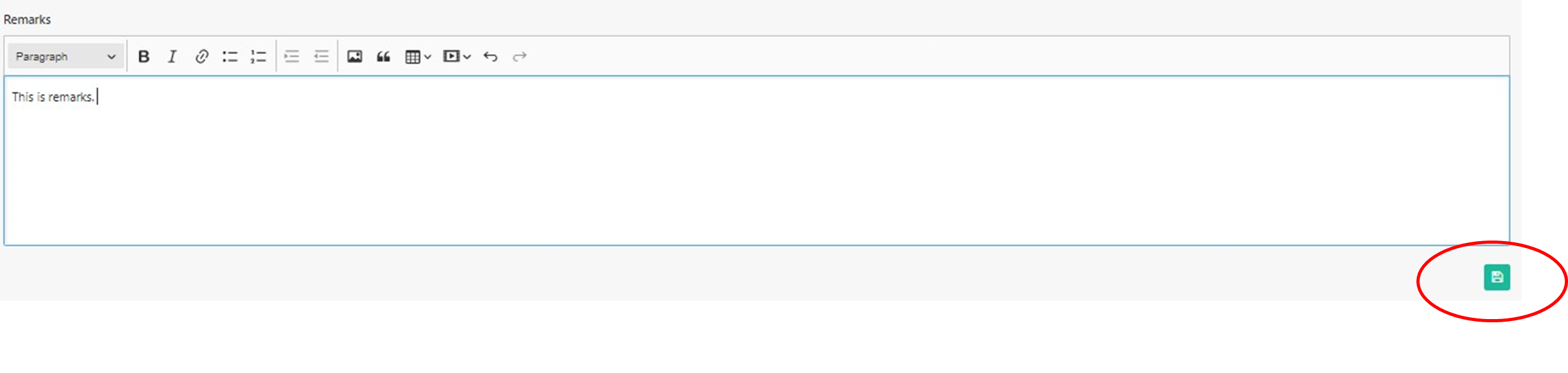
Click the Save Button at the lower leftmost portion.
Attach/Edit/Delete/Submit
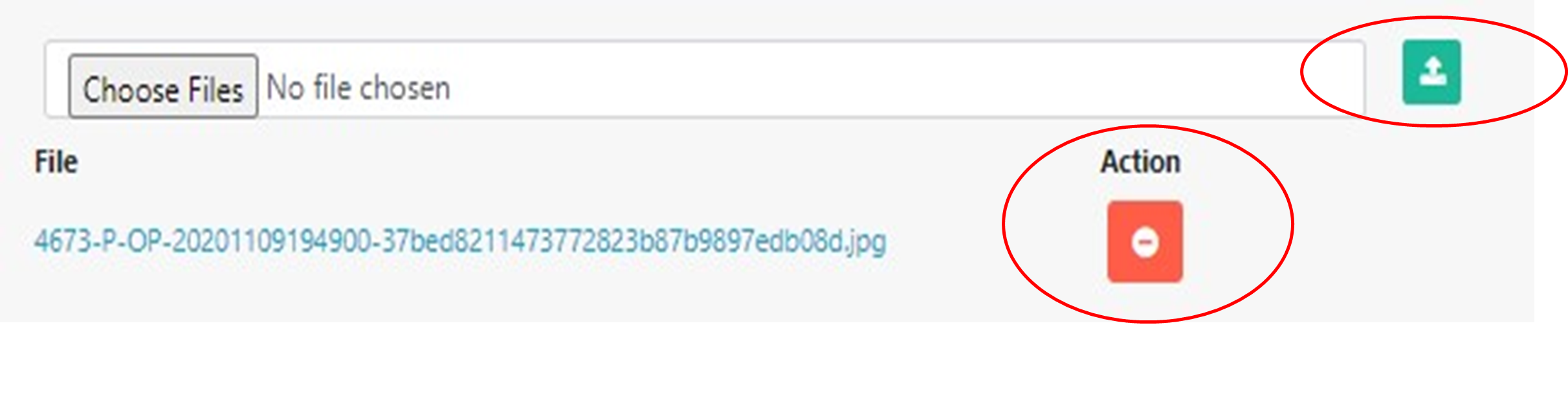
To attach/edit/delete/submit, just click the appropriate button at the lower leftmost portion of the Other Payables Module. For attachment, click the “paper clip” icon and upload the files (images, pdf and doc files only).

Pintable Form
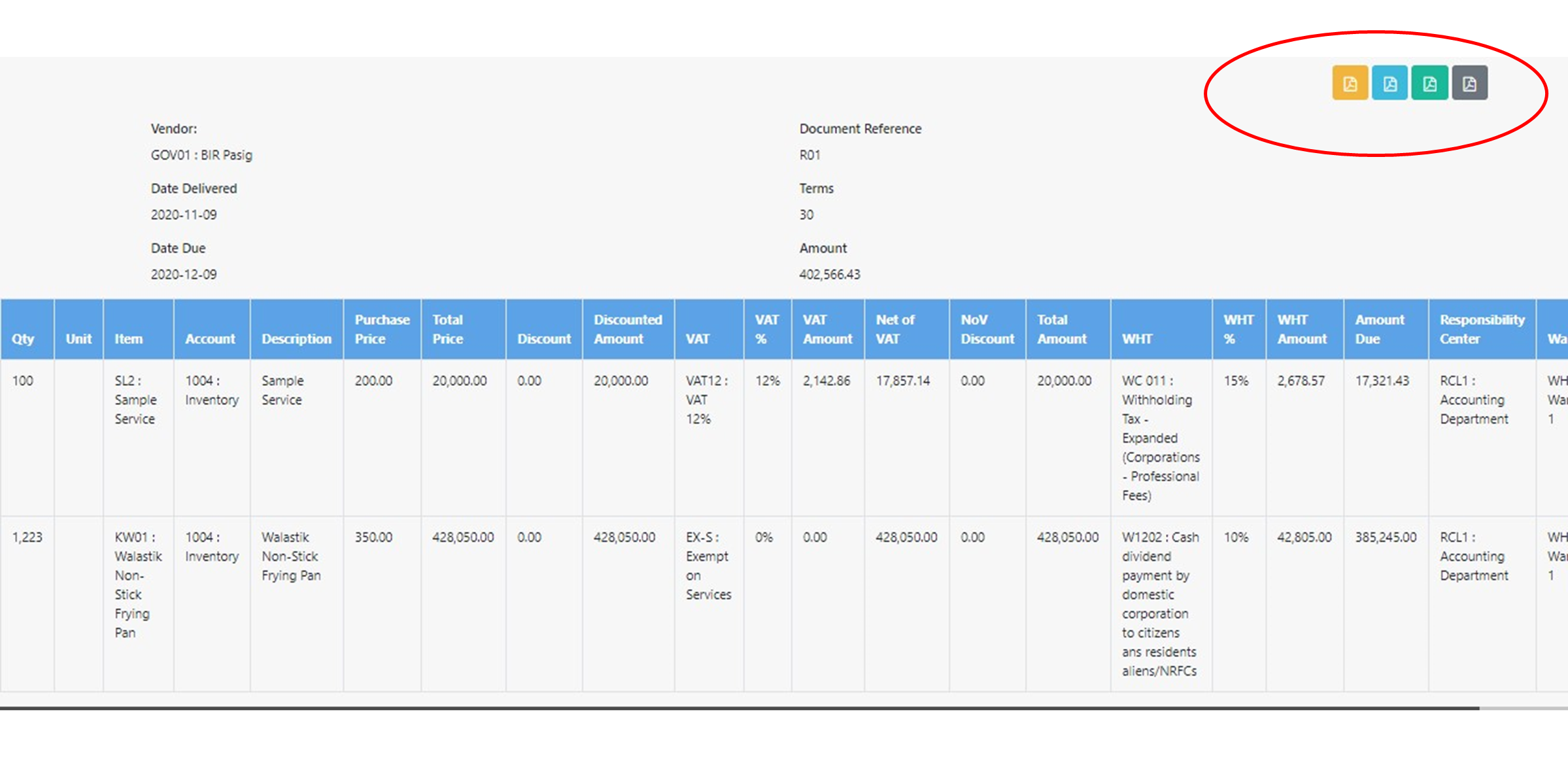
To download Other Payables Voucher, Receiving Report, Accounts Payable Voucher Printable Forms and BIR 2307, just click the Documents Button at the upper rightmost portion of the Other Payables Module.
View and Duplicat
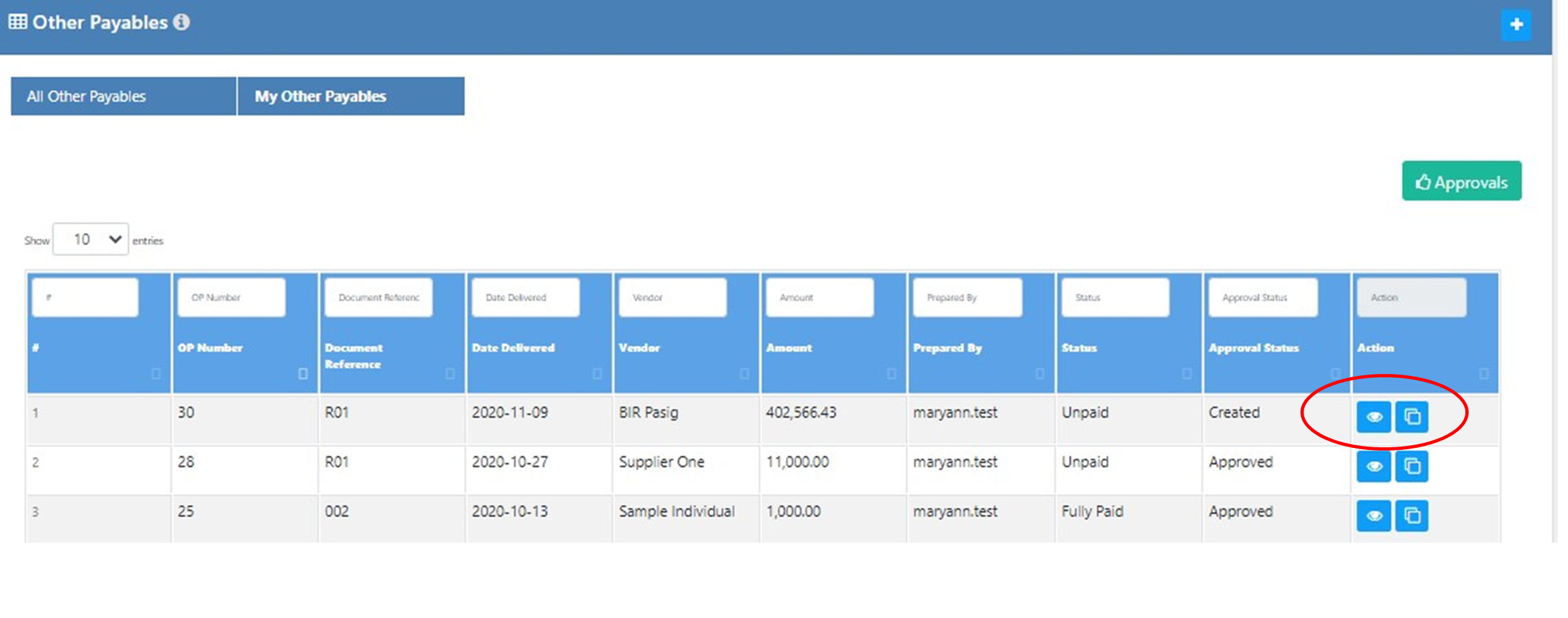
Click the View Button under the Action Column.
To duplicate transaction click duplicate button next to view button.
View Attachment/Check/Return
To view attachment/check/return, just click the appropriate button at the lower leftmost portion of the Other Payables Module. You can download the attachment by clicking the link.

Comment
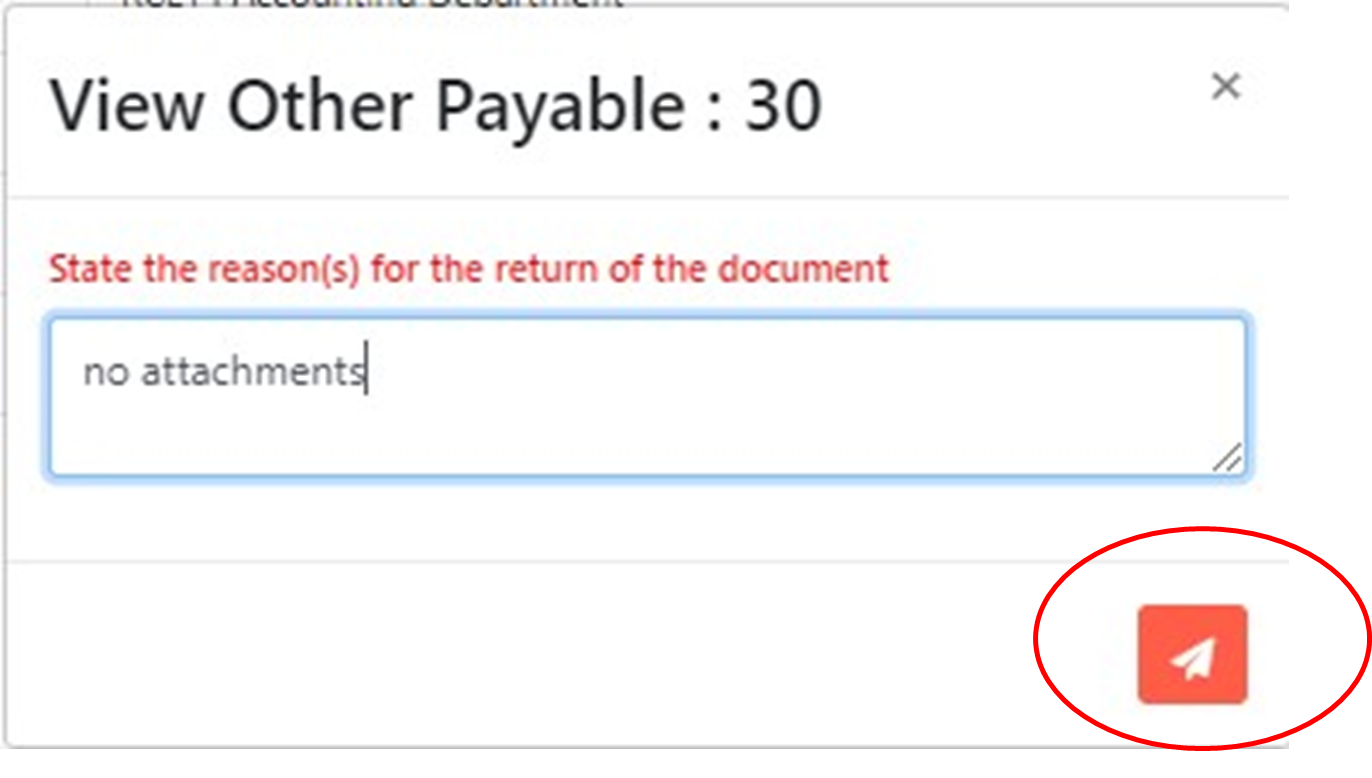
State your comments/reasons when you opt to return the document, then click the Submit Button.
Approve/Return/Cancel
Once checked, the document can be approved, return and cancel. Just click the corresponding